 Fly Notes
Mac dictation not working? How to find the fix
3 min read
When Mac dictation stops working, open a new TextEdit document and choose Edit › Start Dictation. If it works there, check the shortcut or the app where it failed. If TextEdit also stays blank, check whether Dictation is listening, which microphone it is using and whether the selected language matches what you are speaking.
How do you tell which part stopped working?
- Try TextEdit first. Open a new document, click in it and choose Edit › Start Dictation. Say “The envelope is on the desk.” If the text appears, your Mac heard you. A failure only with the keyboard points to the shortcut. A failure only in one app points to the app or field.
- Check which voice feature is listening. Find Dictation under System Settings › Keyboard. If you use Accessibility › Voice Control, leave it on and use its dictation mode. It takes over text entry while enabled.
- Watch the microphone. Under System Settings › Sound › Input, talk and watch the level. Then check Keyboard › Dictation › Microphone source. AirPods can play sound while Dictation is listening to another input. Select the intended microphone explicitly and repeat the sentence. If it works with the built-in mic, reconnect the headset and try it again.
- Check the language. Under Keyboard › Dictation › Languages, select the language and region you speak. On-device dictation requires a downloaded speech model. If you just added a language, stay connected while it downloads and retry before testing offline.
- If this started after an update, change one thing at a time. Try the menu, then the shortcut. Recheck the input and language. If all three are right and the test still fails, switch Dictation off and back on. Save your work before restarting the Mac and trying the same sentence again.
Apple’s troubleshooting guide · Apple’s on-device language requirements
What if only Google Docs or Word fails?
- Type one word in the field. A document open for viewing cannot accept a dictated paragraph. Check you can edit it before changing microphone access.
- If you clicked the Google Docs microphone, check permission for the browser in System Settings › Privacy & Security › Microphone, then permission for the site. In Chrome, open Settings › Privacy and security › Site settings › Microphone and find the site’s entry. In Safari, use Safari › Settings › Websites › Microphone. Allow the intended site, reopen the document and try Tools › Voice typing again.
- If you clicked Word’s Dictate button, check the connection and the Microsoft 365 account. Try the Mac shortcut in the same document. If that works, you can finish the paragraph while you sort out Word’s own service.
Chrome microphone permissions · Safari website settings · Google Docs voice typing · Microsoft’s Dictate help
What if a setting is unavailable?
On a family Mac, check Screen Time › Content & Privacy Restrictions with the person who manages it. The controls available depend on the macOS version and the feature. On a managed Mac, tell your administrator exactly which test failed. For example, an organization can require on-device Dictation or restrict microphone access in managed Chrome. A dimmed control is a good reason to ask about policy before reinstalling software. Apple’s Mac management restrictions
What if Fly Notes heard the sentence but typed nothing?
- Open Dictation in Fly Notes on the Mac where you spoke. Search for a word you remember.
- Use the copy button beside the matching take and paste it into your draft.
- For the next take, check System Settings › Privacy & Security › Accessibility. That permission lets Fly Notes insert words in another app. Where to find a previous dictation
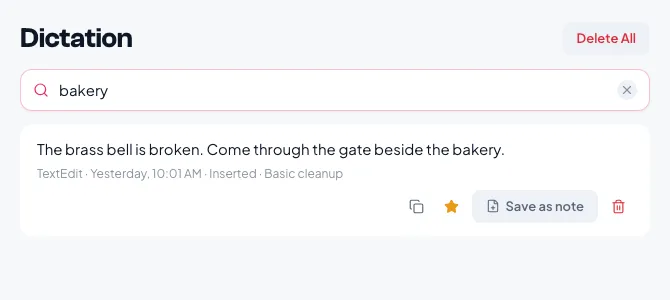
Fly Notes can copy a finished take when it cannot type into the current field. Download for Mac (Apple silicon) · iPhone app
Related questions
- What should you check after a macOS update?
- Try TextEdit using its Edit menu. Then look at the Dictation switch, the assigned shortcut and the selected microphone before changing several settings at once.
- Does a working video call prove the right microphone is selected?
- It proves the call had a working microphone. Dictation has its own Microphone source setting, and a browser may also ask for permission to use a mic.
- What if the text appears but keeps coming out in the wrong language?
- Check Languages under Keyboard › Dictation. If you enabled several languages, look at the language selected beside the cursor before you change microphones.